Block Tracking Events
Intercepts tracking-oriented event listeners so pages have a harder time watching your activity state.

Stay active without staying on the page. Spoof your activity on >whitelisted domains to prevent idle detection and tracking, or even block alt-tab detections, keeping websites in behaving as though you are still there, even when you are not.
Note: Literally any browser that supports installing extension, even on mobile. (srsly)
Intercepts tracking-oriented event listeners so pages have a harder time watching your activity state.
Makes the page behave as though the tab is still active and focused when you are switching around.
Reduces the usefulness of visibility-change checks that websites use to detect tab switching. Alt-Tab wont be detected reliably.
Shields your page against advanced monitoring scripts that try to hijack your browser's native activity sensors to force an "away" state.
Keeps timing signals looking active so animation-based heuristics do not conclude the page is idle.
Keeps timer behavior more predictable when browsers try to slow work down in the background.
Limits how much the page can learn from pointer and hover activity. Such as your mouse pointer leaving the window of the browser or the page itself.
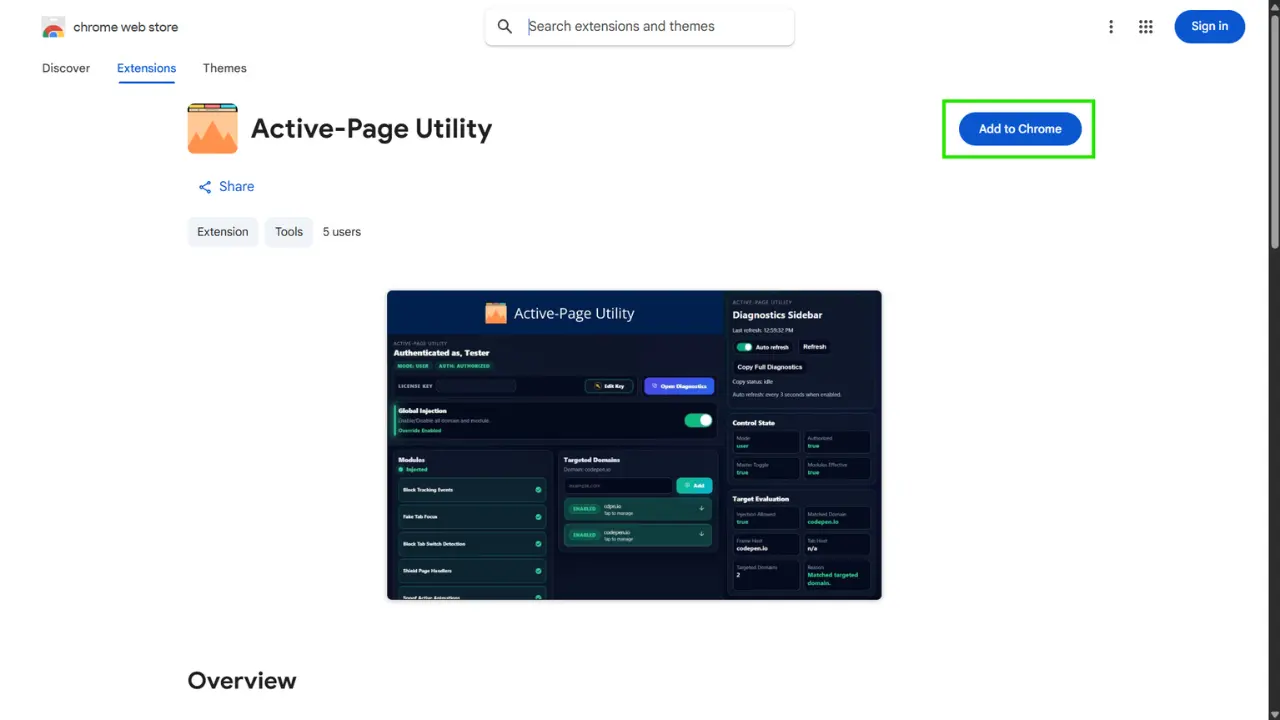
First Install the Extension in
Chrome Web Store.
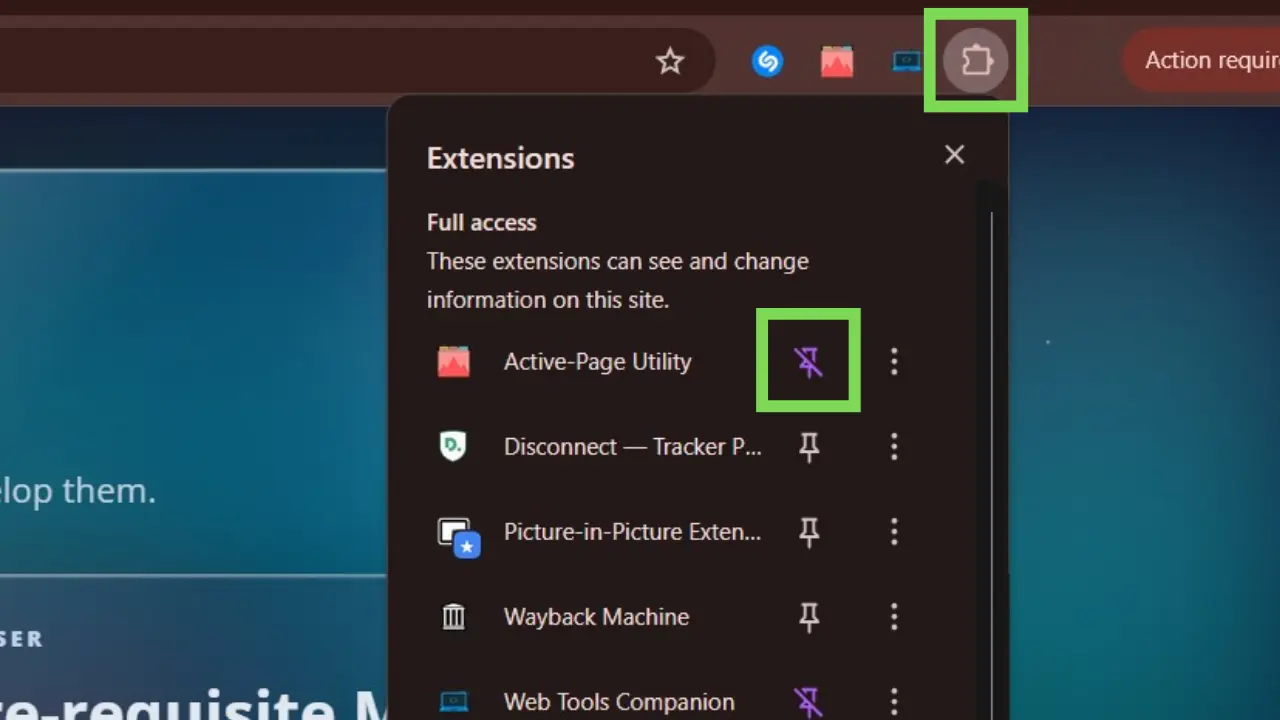
Ones installed, if you wish, you can pin the extension so that it can be accessed easier.
Upon opening the extension, you will need an Activation Key
which will be used to
Unlock Functionalities of the Extension.
Get your Activation Key by sending me an email at
gen.harpuia@outlook.ph,
with the Subject: Request for Key
and in the Body, your Username
Ones you have acquired the
Activation Key,
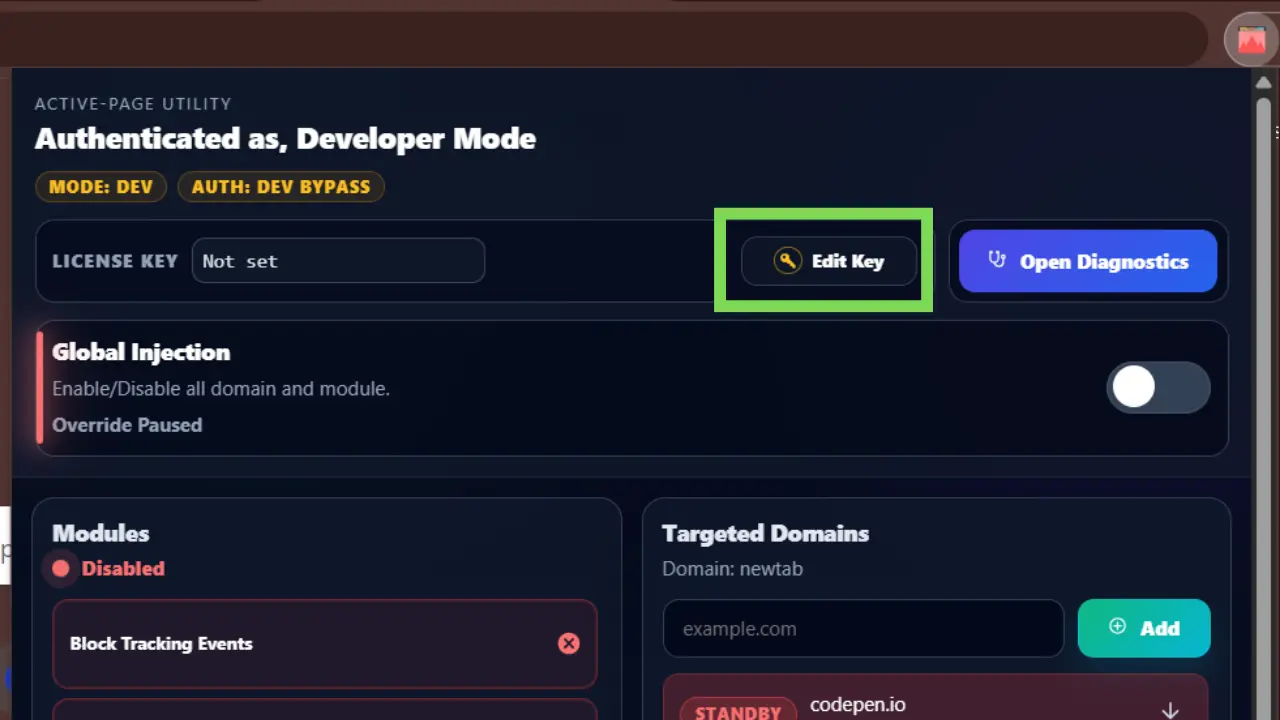
open the extension popup again and click the
Edit Key
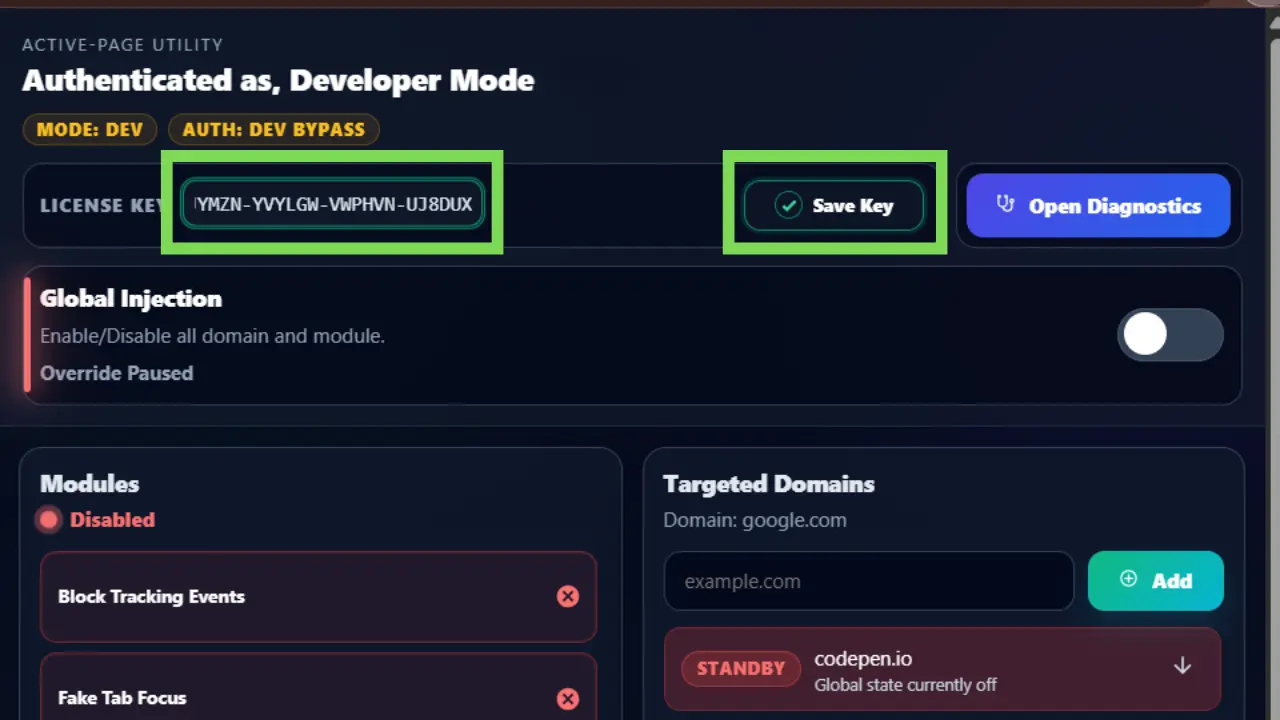
Button. Input the Key on the Textbox and click
Save Key.
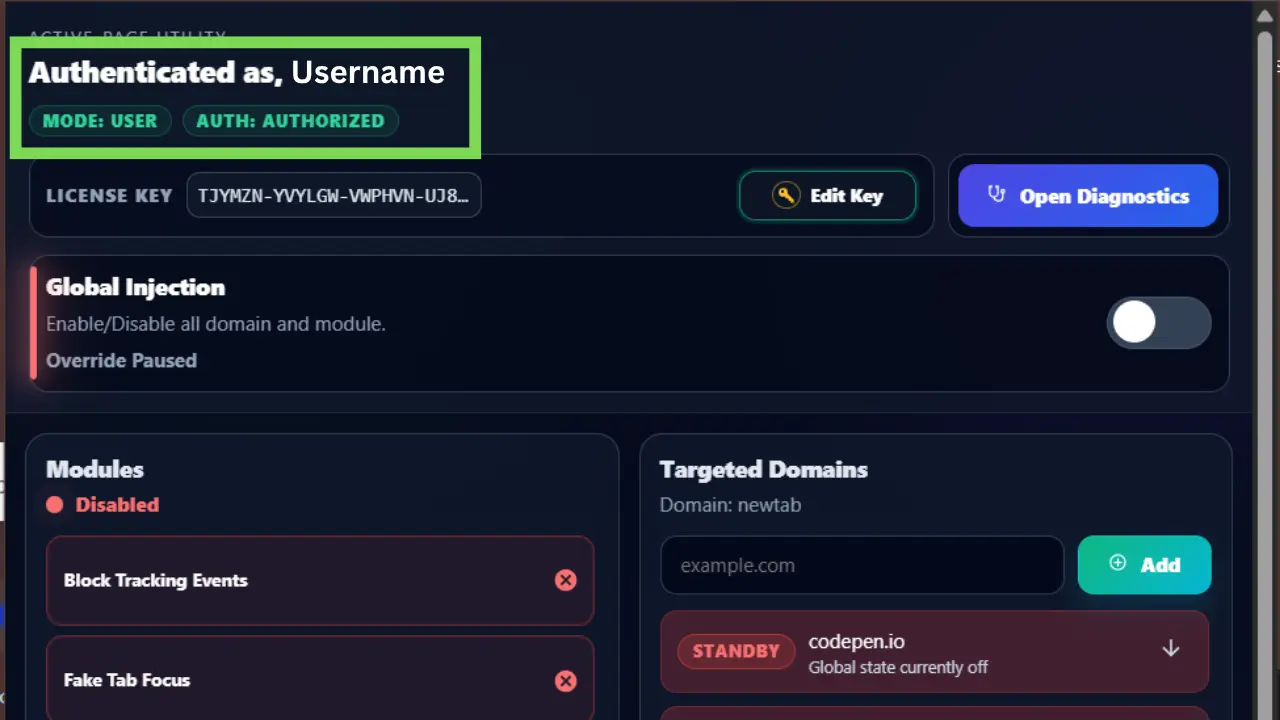
If the key is valid, it'll automatically lift the restriction, and your Username will show up
with the Status of your Authentication.
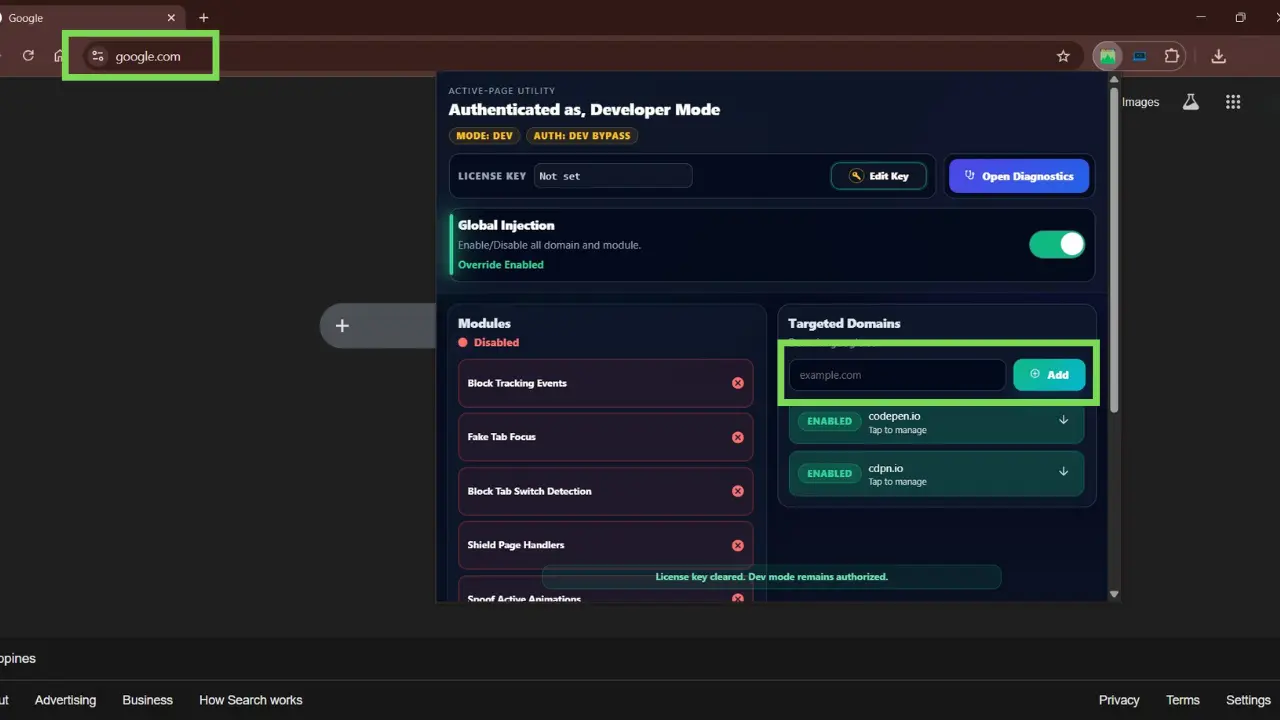
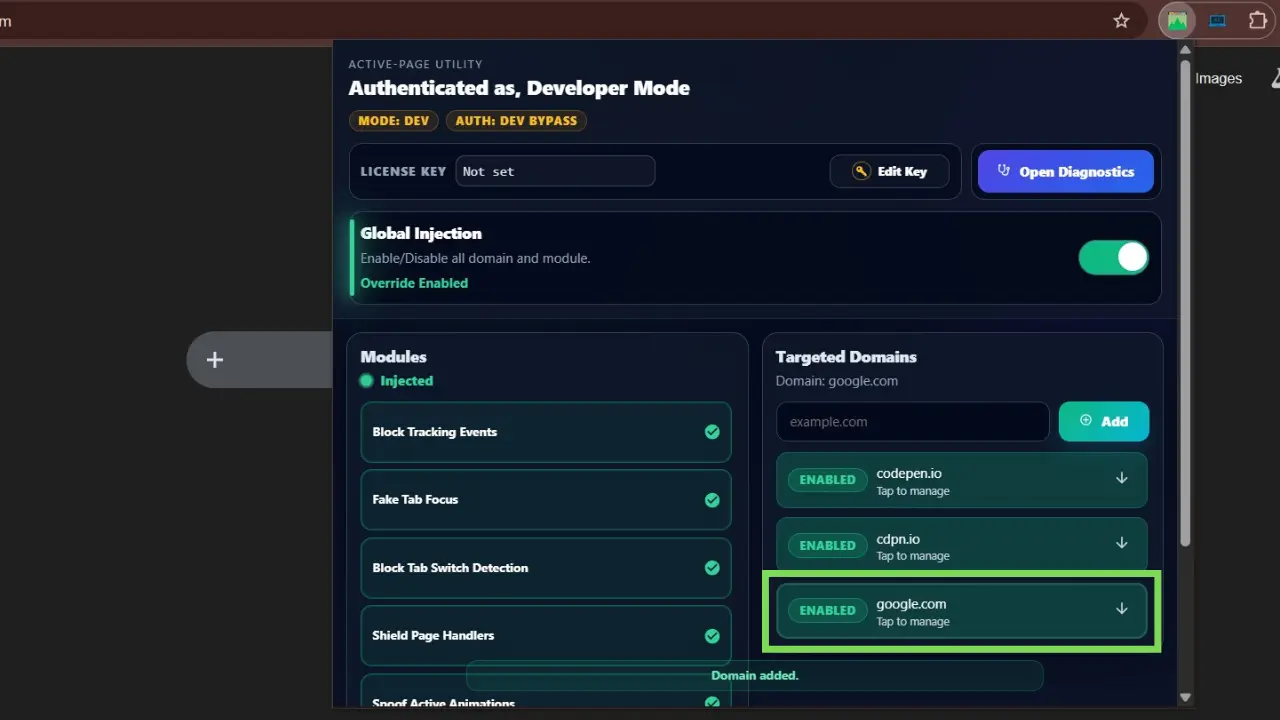
To add a desired domain, you can copy paste the
URL
of the page onto the Targeted Domain Input
then hit
Save.
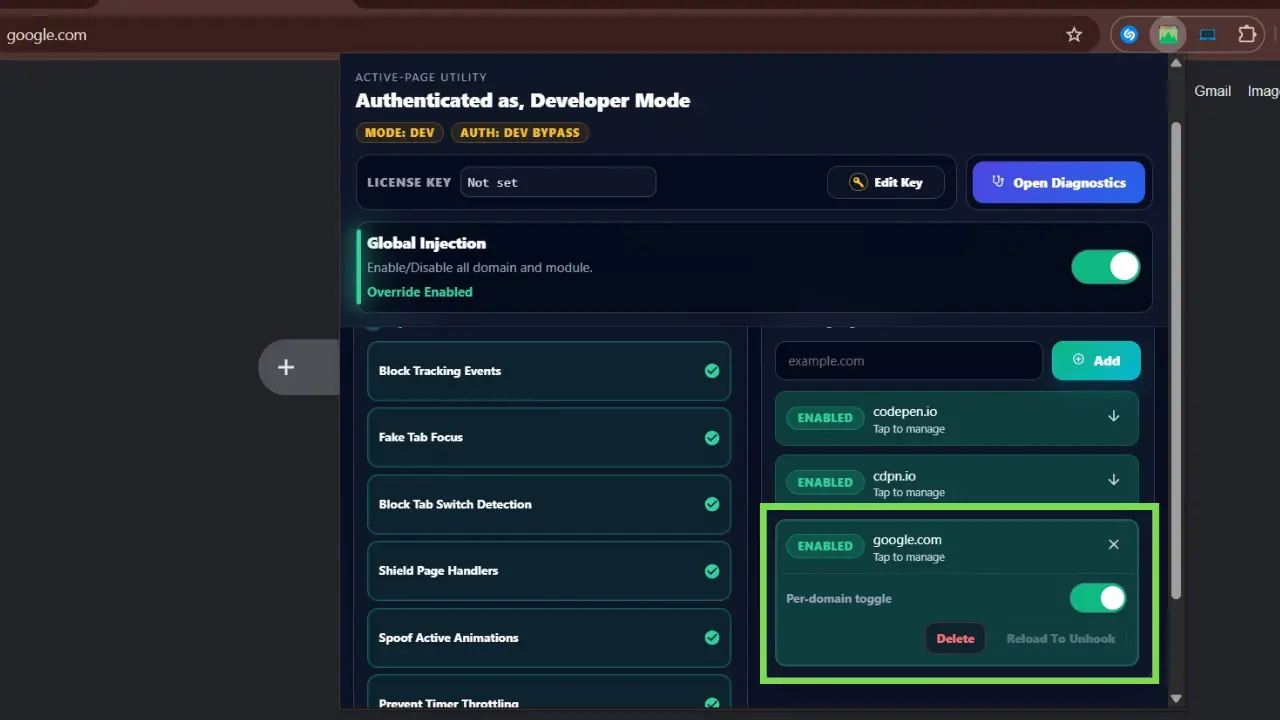
To Mange Domain Profiles, click
on
the
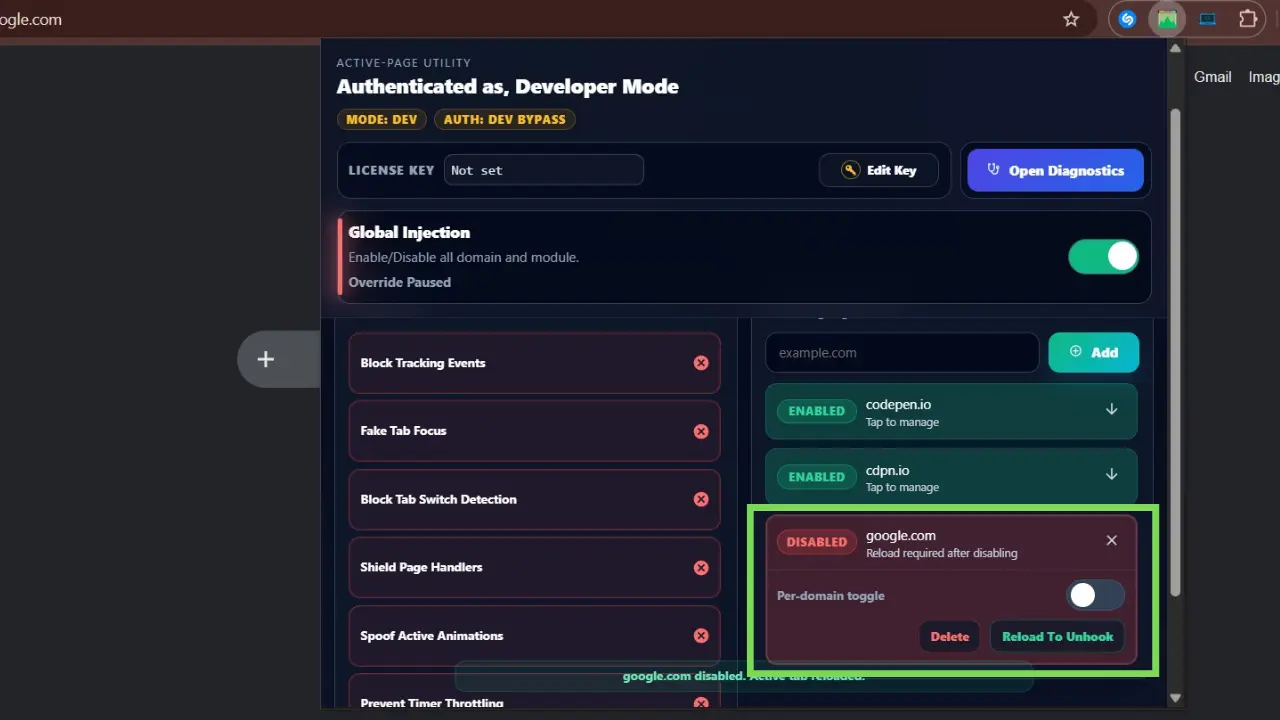
Saved Domain, each domain can be managed here, if you
were to disable a specific domain you need to also Reload that page to fully disable.
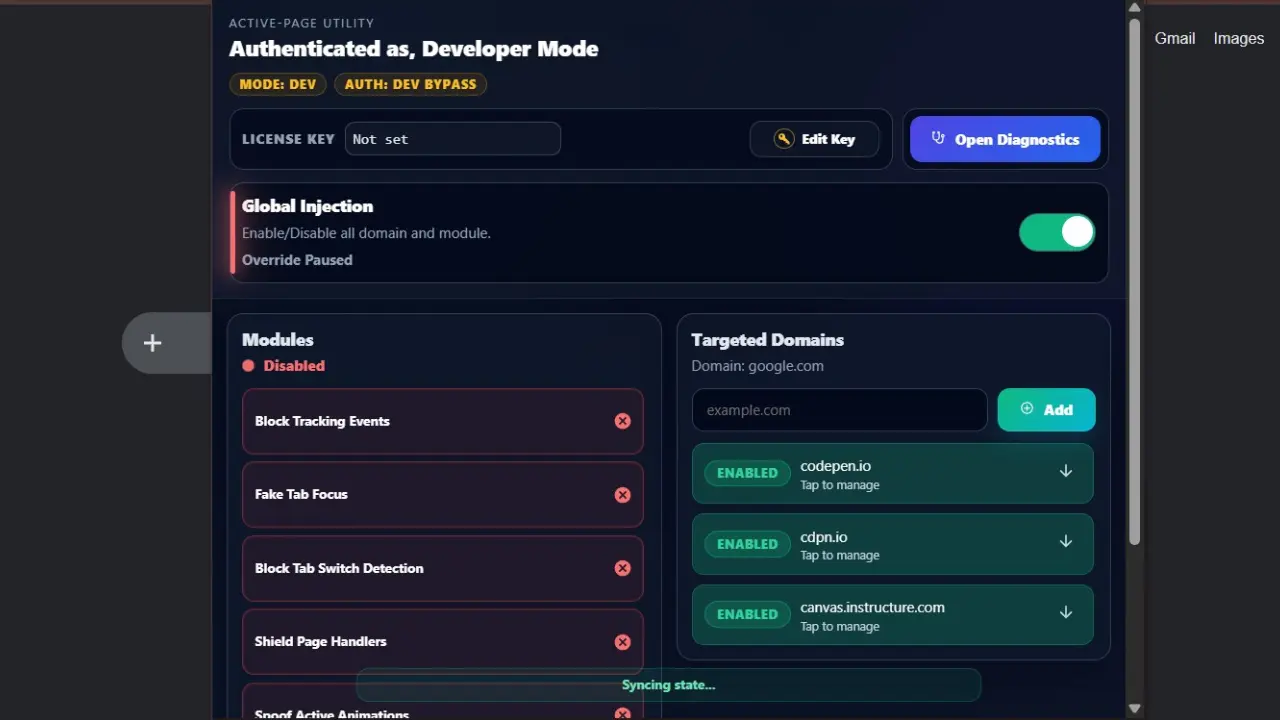
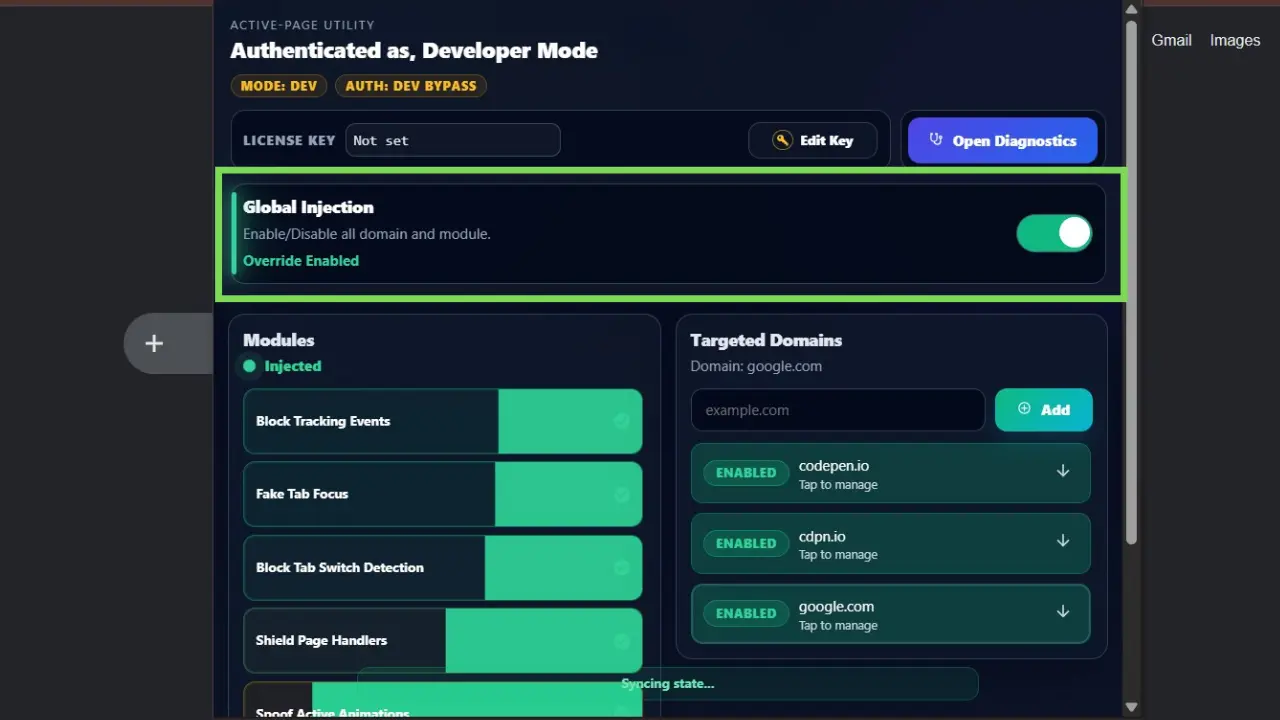
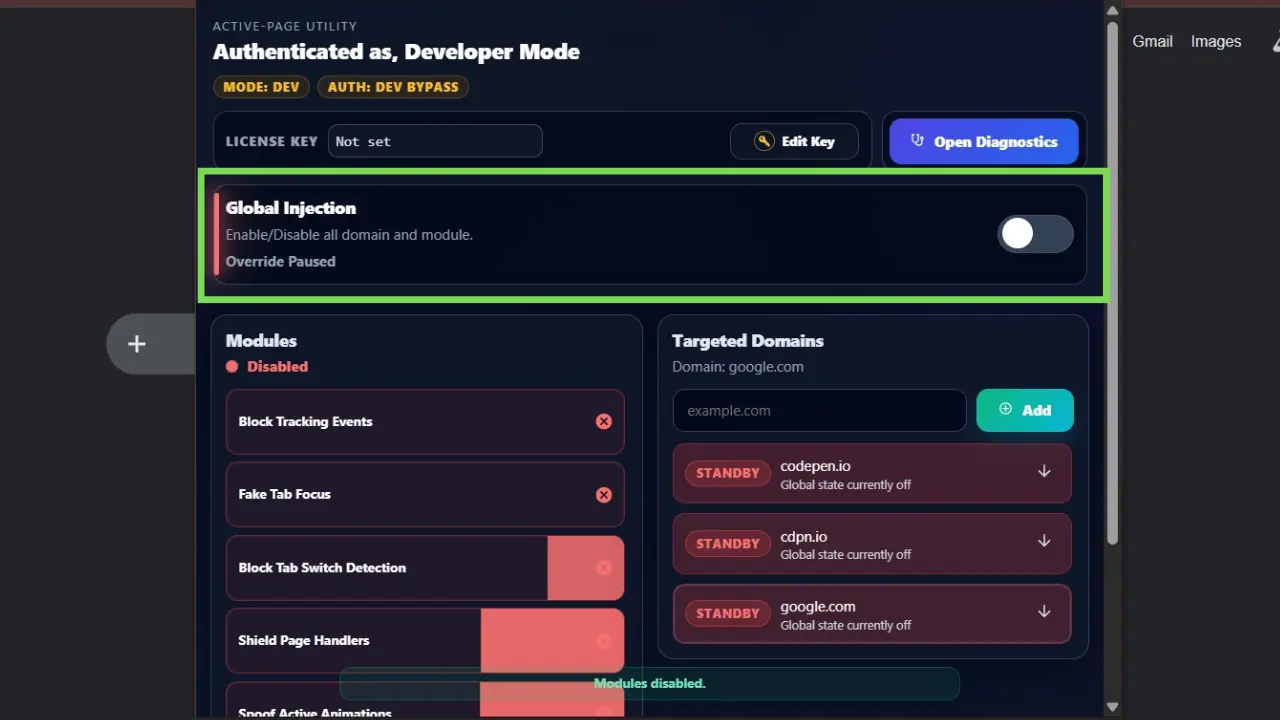
This Toggle serves as the global control for the whole
domains, Enabling and Disabling
this
defines if the all sites with Enabled Profile will have all the Modules applied to them.
Actually thats all, nothing fancy.
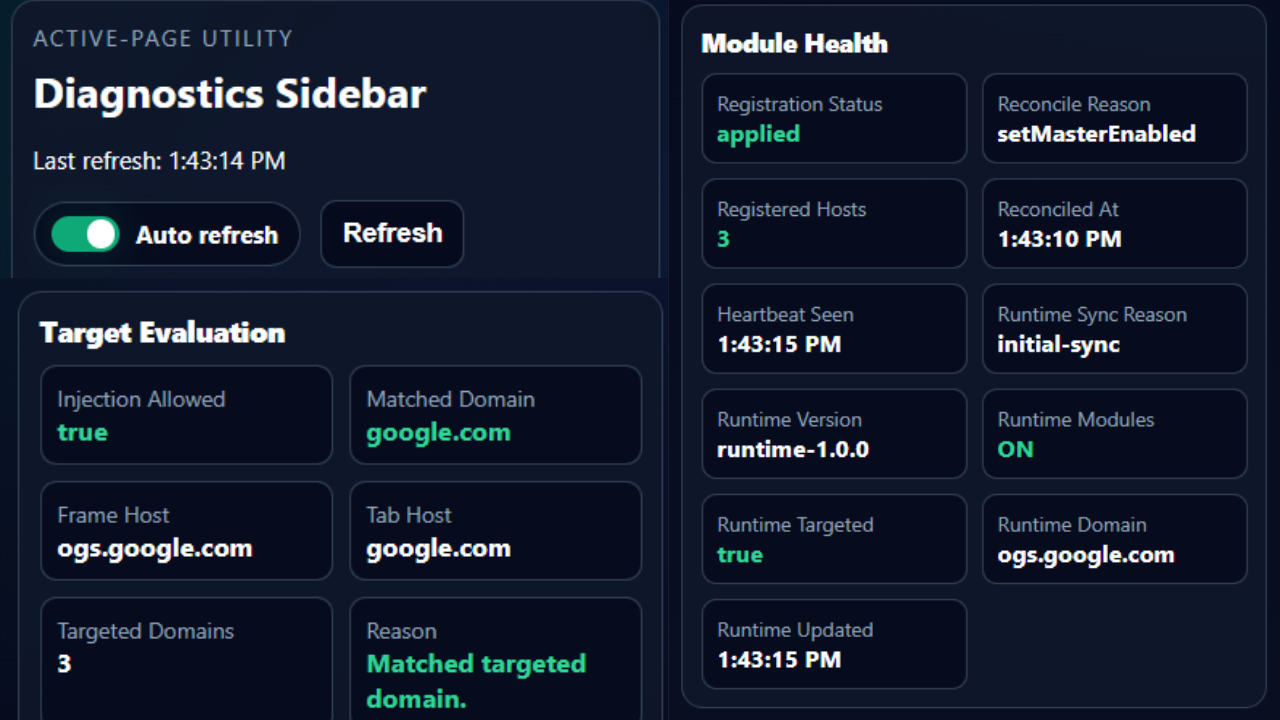
The Diagnostics Sidebar is mostly for debugging purpose and transparent tracing of how and what the
extension is doing in the background.
Use this to verify the injection and if the overrides are Healthy.
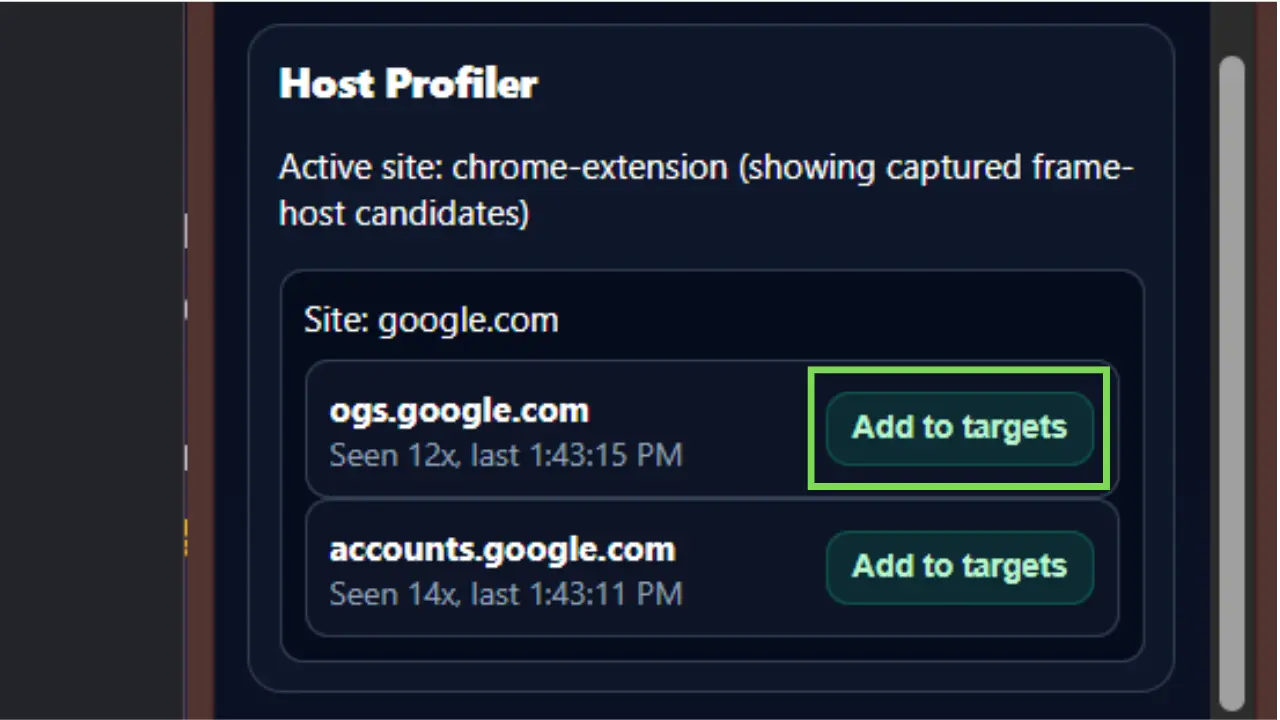
The Hosts Profiler is used if the website has multiple frame hosts candidates. Some websites use
cross domain frames for some features, use this to verify the hosts and select the correct one to
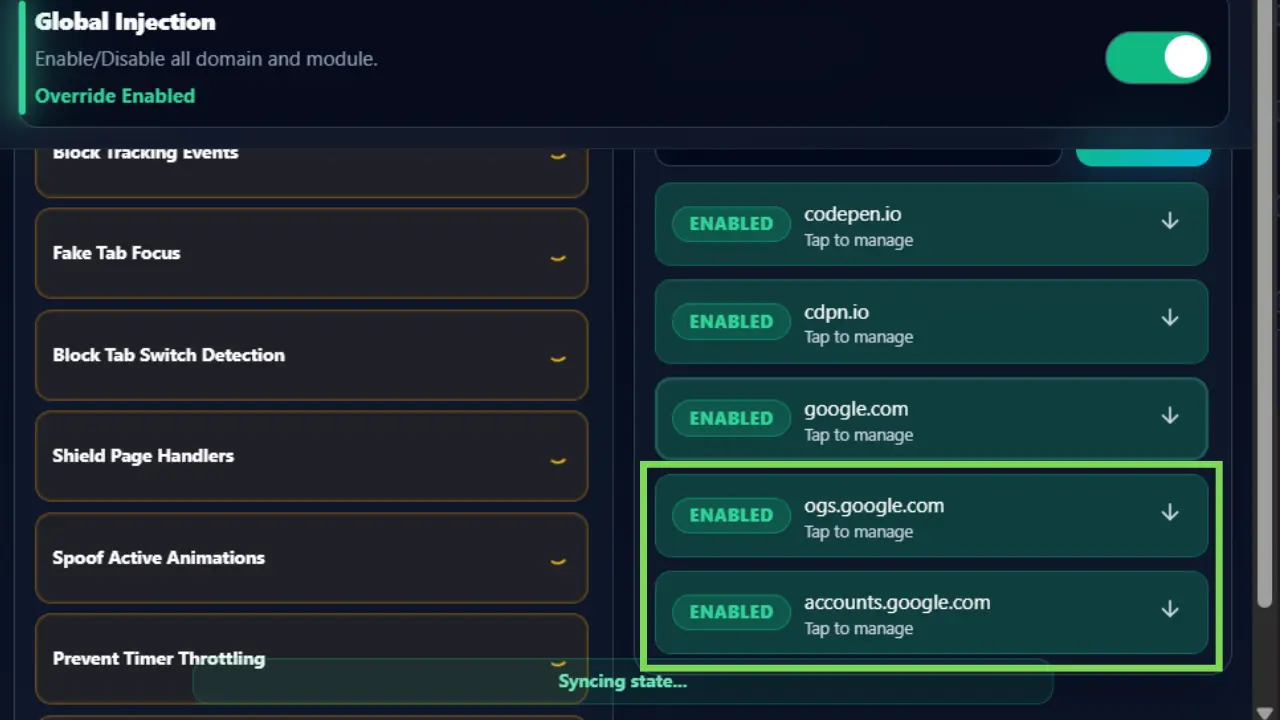
override them if the main website fails. Ones the Profiler has seen domains, add them with ease with
the Add to Targets button.
Example: codepen.io is the main host domain, but inside it has
cdpn.io for the actual pen view. Use
this
to add both to the targets if needed.